
Volume Booster for Android
ZipoAppsMusic & Audio
4.63.60K Reviews
- Version
- 13.3.8
- Installs
- 10.00M
- Age Rating
- Everyone
Screenshots
Our Review of Volume Booster for Android
 Analysis by Appyee
I approach a volume-boosting app with one practical question: can it make quiet audio easier to hear without turning a small problem into harsh, distorted sound? Volume Booster for Android is built around that use, and I find it most helpful as an occasional adjustment rather than a setting to leave pushed high all day. If you are new to this kind of tool, the best first result is modest: choose something familiar to listen to, raise the level gradually, and stop when it is comfortably clearer.
What to expect from a sound booster
This is a free Music & Audio app from ZipoApps, aimed at people who want more control over how loud audio seems on their Android device. It is rated for Everyone, has a 4.6 average from around 150,000 ratings, and has passed 10 million installs. Those figures suggest it has found a broad audience, but they do not tell you how it will sound through your particular phone speaker, headphones, or Bluetooth device. Hardware and the original recording matter, so I would treat the boost as a way to make audio more audible, not as a promise of studio-quality sound.
The app’s version is 13.3.8, and it runs on Android 5.0 and up. It is free to download, with optional in-app purchases ranging from $0.99 to $279.99 per item. I would check any purchase screen carefully before confirming anything; you do not need to assume that every useful listening adjustment requires spending money. My main advice for a first-time user is to begin with the basic volume control and judge the result before exploring more.
Getting set up without overthinking it
After installing, start with the audio you actually want to improve: a podcast, a saved track, a video, or a call if that is your immediate problem. Set your phone’s normal media volume to a comfortable level first, then open the booster and make a small adjustment. This gives you a useful baseline. If you start with both the phone and the app turned up, it is harder to tell which change helped and easier to overshoot.
The interface is presented as simple, with a prominent volume control and presets described for uses such as music and calls. That makes the first attempt reassuringly direct: try the control, listen for a few seconds, and decide whether the speech or music is clearer. If you see a preset that fits what you are doing, it can be a convenient starting point, but I would still make the final judgment with your own ears. A preset cannot account for every recording or every pair of headphones.
Finding the first useful setting
For a low-volume podcast, I would pick a segment with ordinary speech, raise the boost in small steps, and replay the same line. This is more reliable than judging from a loud musical passage, because spoken words make it easier to notice when extra volume is helping and when it is only making background hiss or sharp sounds more obvious. Once the voice is easy to follow, there is little benefit in pushing further.
For music, compare a familiar section at the same phone volume before and after adjusting the booster. Listen for whether the vocals and instruments remain comfortable, rather than focusing only on loudness. If the sound starts to feel brittle, muddy, or fatiguing, lower the setting. The point is not to win a loudness contest; it is to make ordinary listening workable in the situation you are in.
Where it fits into an everyday routine
A realistic use is catching up on a quiet audiobook while doing light chores, when the narrator’s softer passages are easy to miss. I would test a short section first, find a restrained setting that helps with the narration, and then keep the phone nearby rather than relying on maximum output from across the room. That small workflow makes it easier to hear the words without mistaking sheer loudness for better clarity.
The app can also be handy when a call is difficult to hear, but there is an important distinction: an audio booster cannot fix a poor connection, a faulty microphone on the other end, or noise around you. If the call remains unclear after a careful adjustment, moving somewhere quieter or using a suitable headset may help more than increasing the boost. This is where I see the app as one tool in a short troubleshooting sequence, not a cure for every audio problem.
Turning Up the Volume
First off, let’s talk about what the Volume Booster app promises. The app is said to amplify the audio output of your device beyond its usual limits. Whether it’s music, video, or calls, this app claims to give you that extra oomph. So, I put it to the test with various audio scenarios.
Interface and Usability
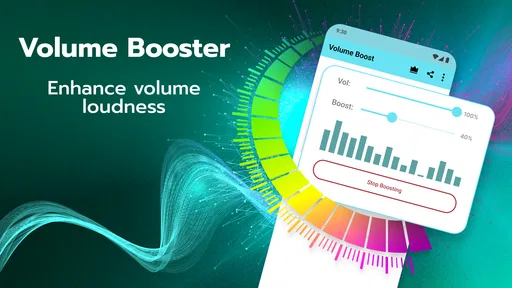
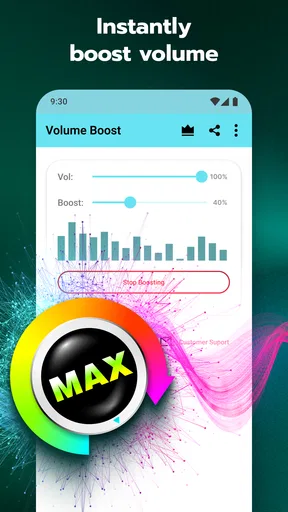
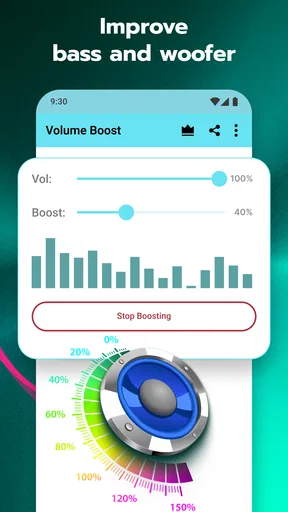
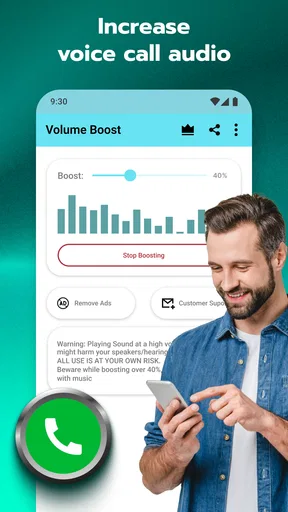
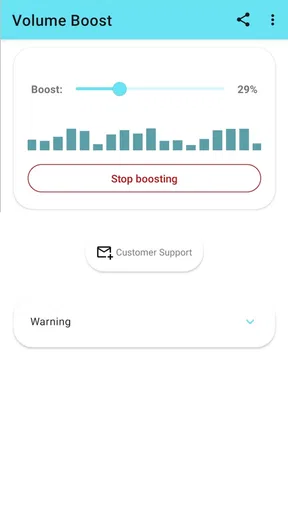
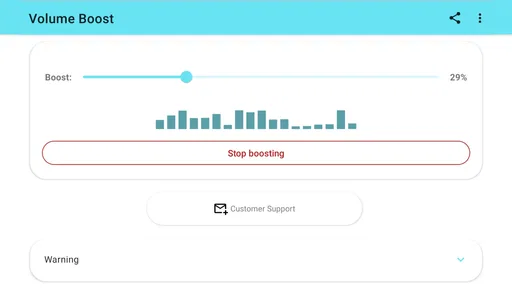
Diving into the app, the interface is surprisingly straightforward. You’re greeted with a sleek, minimalist design that’s easy to navigate. There’s no clutter, just a big volume knob that you can twist and turn to your heart’s content. If you’re like me and appreciate simplicity, you’ll love this setup.
Adjusting the volume is a breeze. You simply slide the knob, and voilà, your audio is boosted. The app also offers a few presets, like for music or calls, which is a nice touch if you’re looking to optimize your listening experience without fiddling around too much.
Performance and Testing
Now, onto the nitty-gritty: does it actually work? I tested the app with some of my favorite playlists and took a couple of calls in noisy environments. To my surprise, the audio quality was quite impressive. The boost was noticeable without distorting the sound, which is often a concern with other volume enhancers. The app doesn’t just crank up the noise; it enhances the clarity, making everything sound crisp and clear.
I even tried it with some podcasts and audiobooks, which can sometimes be a bit too soft. The Volume Booster app did a fantastic job here as well, bringing subtle dialogue and soft-spoken narrations to life.
Extra Features
Aside from the main volume-boosting feature, the app includes an equalizer, which lets you tweak the audio to your liking. If you’re an audiophile, this is a fantastic addition. You can adjust bass, treble, and other parameters to match your personal preferences. It’s like having a mini sound studio in your pocket.
And if you’re worried about battery life, rest easy. The app is designed to be efficient, so you won’t find your phone dying out on you after a few hours of use. Plus, it doesn’t seem to hog much memory, keeping your device running smoothly.
Things to Keep in Mind
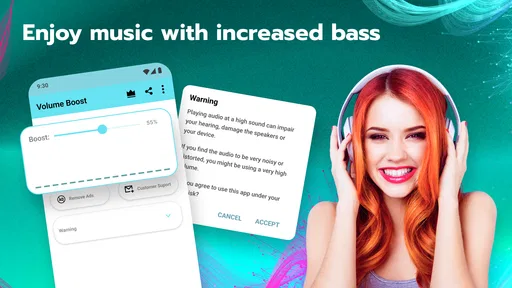
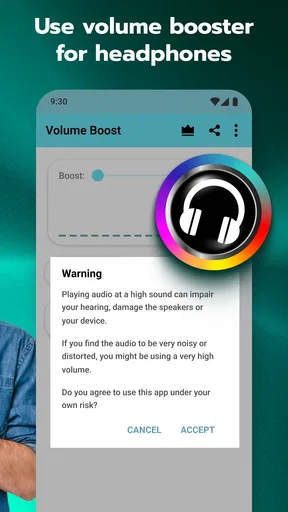
While the app is great, it’s worth noting that pushing your device’s volume to the max all the time can potentially damage your speakers or result in distorted audio over time. It’s always smart to use the boost feature judiciously. Thankfully, the app includes a warning to help prevent any mishaps.
If you’re using headphones or external speakers, the Volume Booster can really shine, offering a richer and fuller sound. However, when using the phone’s built-in speakers, it’s wise to keep an ear out for any signs of strain.
Choosing the right tool for the problem
For a first-time user, the main question is whether to reach for a booster, the phone’s own volume buttons, or a different listening setup. I would use the built-in controls first when the sound is simply turned down. A booster makes more sense when the ordinary level still feels insufficient for a particular recording or situation. If the source itself is muffled, noisy, or poorly mixed, raising its level may make those flaws more noticeable rather than restoring detail.
Compared with a dedicated equalizer, a volume booster is the more direct choice when the immediate goal is audibility. An equalizer is better when the sound balance is the issue—for example, when speech feels buried under bass—and it usually takes more listening and adjustment to get right. This app’s combination of a large control and an equalizer gives you both kinds of adjustment, but I would change one thing at a time. Raising volume and shifting several tone settings together makes it difficult to know what improved the result.
There are also times when a small external speaker or a well-fitting headset is the better answer. If you are trying to share audio with someone else, a booster cannot make a phone’s tiny speaker behave like a room speaker. For private listening, headphones can make a quiet recording easier to follow without forcing the built-in speaker to work harder. I would skip the app if your normal listening level is already comfortable or if your main issue is the quality of the recording rather than its loudness.
Useful checks when the result surprises you
If adjusting the control seems to have no effect, first check that the audio is playing through the output you intended and that the phone’s ordinary media level is not near zero. Then try a different source, such as a spoken recording you know well. One app or track can be unusually quiet; testing a second example helps separate a source-specific issue from a setting problem. I would avoid changing multiple controls at once, because that makes it harder to return to a comfortable sound.
If the audio gets louder but not clearer, lower the boost and try the equalizer gently rather than continuing to raise the overall level. A modest change to the tone may make voices easier to distinguish, while excessive adjustment can make music tiring or unnatural. Keep the original phone controls within reach, too: if you switch from a quiet podcast to a much louder video, reduce the level promptly instead of assuming the same boost remains safe for every source.
One practical trade-off is that the best setting may not be the same for the phone speaker and headphones. I would tune each listening situation separately and recheck after changing output devices. A setting that seems restrained through one pair of headphones can feel too forceful through another device, so a quick listen before settling in is worthwhile. Treat the app’s warning and your own discomfort as reasons to turn things down, not as challenges to push through.
Who will get the most from it
I would recommend trying it if you regularly encounter quiet spoken audio, want a quick control for occasional low-volume playback, or enjoy shaping the sound with an equalizer. It is especially approachable for someone who does not want to learn a complicated audio tool before making a small adjustment. The main control is easy to understand, and a careful, gradual test gives you a clear sense of whether it is useful on your device.
I would be more cautious if you listen at high volume for long periods, need consistent sound for professional work, or expect an app to repair weak hardware or a bad recording. In those cases, a better headset, a quieter place, or a change in the audio source is often the more sensible fix. People with sensitive hearing should be particularly conservative: louder is not automatically clearer, and discomfort is a cue to stop or reduce the level.
The app is free to try, although optional purchases are available, so I would explore the basic controls before deciding whether any paid option is worthwhile for you. There is no need to buy something just because a purchase is offered. The useful test is whether the sound becomes easier to follow in your normal routine and whether you can achieve that without distortion or discomfort.
Final Thoughts
So, is the Volume Booster worth downloading? In my opinion, absolutely. It’s a handy tool for anyone who struggles with low audio levels on their phone. The app is user-friendly, performs well, and adds some great features that go beyond just boosting volume. Whether you’re a music lover or need clearer calls, this app has got you covered.
Next time you’re struggling to hear that podcast or want to pump up the jams, give the Volume Booster a try. It just might become your new favorite app.
Verdict
Strengths of Volume Booster for Android
- Boosts audio for all apps seamlessly.
- User-friendly interface with simple controls.
- Customizable volume settings available.
- Works well even with external speakers.
- No noticeable lag or performance issues.
Limitations of Volume Booster for Android
- May distort audio at very high levels.
- Contains in-app ads that can be intrusive.
- Limited features in the free version.
- Not compatible with all devices.
- Potential battery drain with prolonged use.
Other Releases by ZipoApps
View All
Screen Mirroring - Cast to TV
Video Players & Editors4.3

Cut and Paste Photos
Photography4.6

Edge Lighting - Borderlight
Personalization4.8

Widgets OS 18 - Color Widgets
Personalization4.7
Similar Picks in This Category
View All
YouTube Music
Google LLC4.4

Samsung Music
Samsung Electronics Co., Ltd.3.8

Spotify: Music and Podcasts
Spotify AB4.3

JioSaavn - Music & Podcasts
Saavn Media Limited4.3

Lark Player:Music Player & MP3
Lark Player Studio - Music, MP3 & Video Player4.6

StarMaker: Sing Karaoke Songs
SKYWORK AI PTE. LTD.4.3
Frequently Asked Questions
What features does the Volume Booster app offer?
The Volume Booster app is designed to enhance the audio experience on your Android device. It offers features such as a sound amplifier, bass boost, and equalizer settings. Users can customize sound profiles for different activities, ensuring optimal audio performance for music, movies, or calls.
Is the Volume Booster app safe to use?
Yes, the Volume Booster app is generally safe to use. However, users should ensure they download it from reputable sources like the Google Play Store to avoid malware. It’s also important to follow the app’s usage guidelines to prevent damage to your device’s speakers.
Does the Volume Booster app work with all types of audio files?
The app is compatible with most audio file types and streaming services. Whether you're listening to MP3s, podcasts, or streaming music, the app can enhance the sound quality. However, results may vary depending on the audio source and device model.
Will using the Volume Booster app affect battery life?
Using the Volume Booster app can have a slight impact on battery life, especially if the app is running continuously in the background. The extent of battery usage depends on your device and how often the app is used, but it's generally manageable with normal usage.
How can I adjust the settings in the Volume Booster app?
Adjusting settings in the Volume Booster app is straightforward. Users can navigate to the settings menu within the app, where they can find options to tweak the equalizer, adjust bass levels, and set custom sound profiles. The interface is user-friendly, designed for easy navigation.
